

Organise posts with categories
Categories are the broad topics that structure your blog — think News, Behind the scenes, or Guides. They give readers a clear way to browse by subject, and they show up as a category label on each post.
Open Blog categories
Section titled “Open Blog categories”In the sidebar, find the Content section and select Blog categories. The page opens on the Categories tab, alongside Tags and Authors.
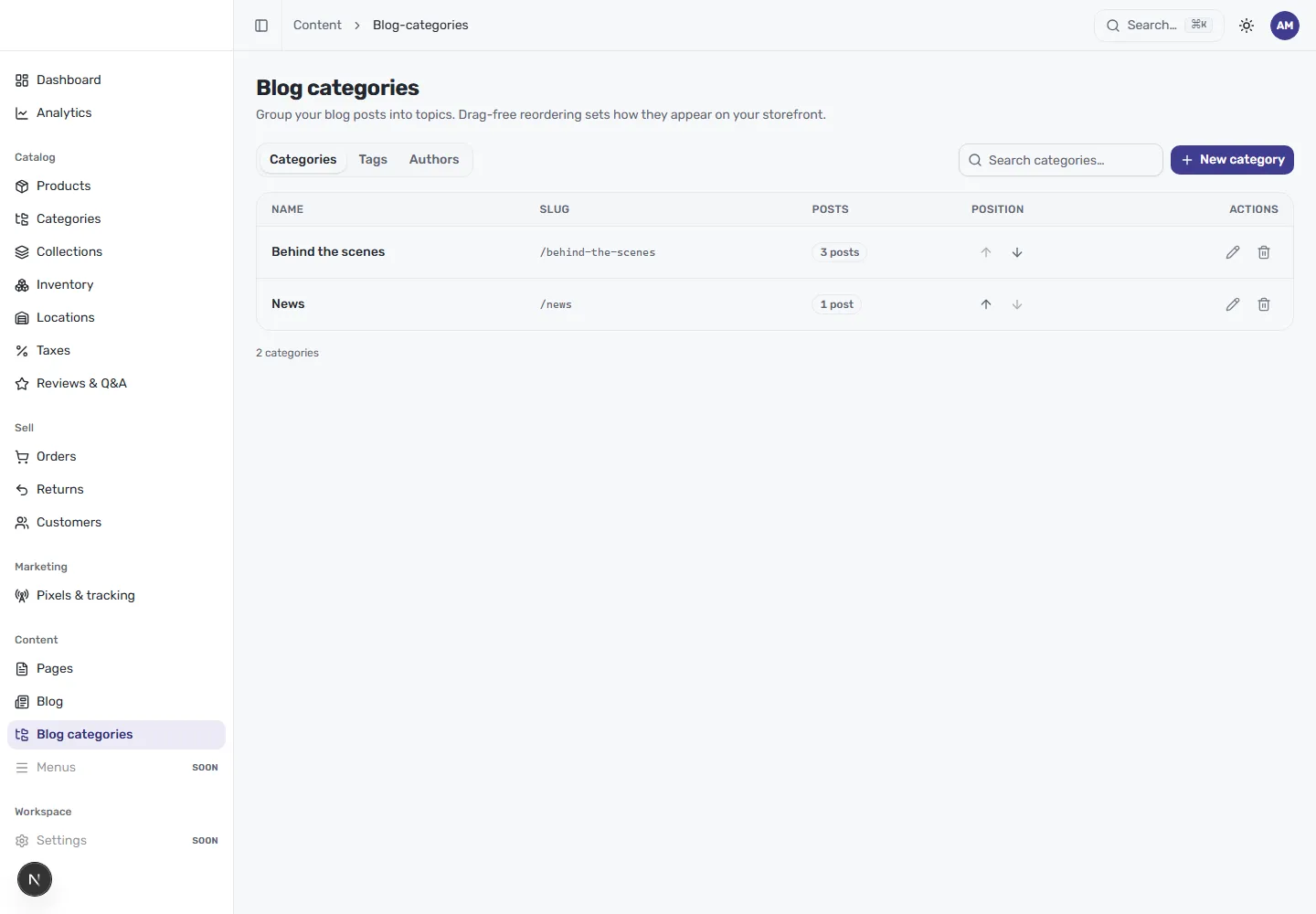
The table lists every category with:
- Name — the label readers see, such as “Behind the scenes”.
- Slug — the URL segment for the category (for example
/news). - Posts — how many articles currently sit in the category.
- Position — where the category falls in your storefront ordering.
- Actions — edit or delete the category.
Create a category
Section titled “Create a category”Select New category in the top right, give the category a name, and confirm its slug. Once saved, the category joins the list and becomes available in the Categories panel of the post editor, where you assign posts to it.
Order how categories appear
Section titled “Order how categories appear”The Position column has up and down arrows for each row. Use them to set the order categories appear in on your storefront — the page description calls this drag-free reordering, so you nudge each category into place one step at a time rather than dragging.
Search and manage
Section titled “Search and manage”Use Search categories to find a category in a long list. The edit and delete actions on each row let you rename a category, change its slug, or remove one you no longer need.