

Connect a destination
Each ad or analytics platform you send conversions to is a destination. You manage them all from one place in the admin, and every destination follows the same pattern: fill in a short form, paste a secret, send a test event, save. Walk that loop once and it feels familiar for every platform.
Open Pixels & tracking from the Marketing group in the left navigation. The screen opens on a grid of destination cards; select Configure on any card to open its editor, which slides in from the right.
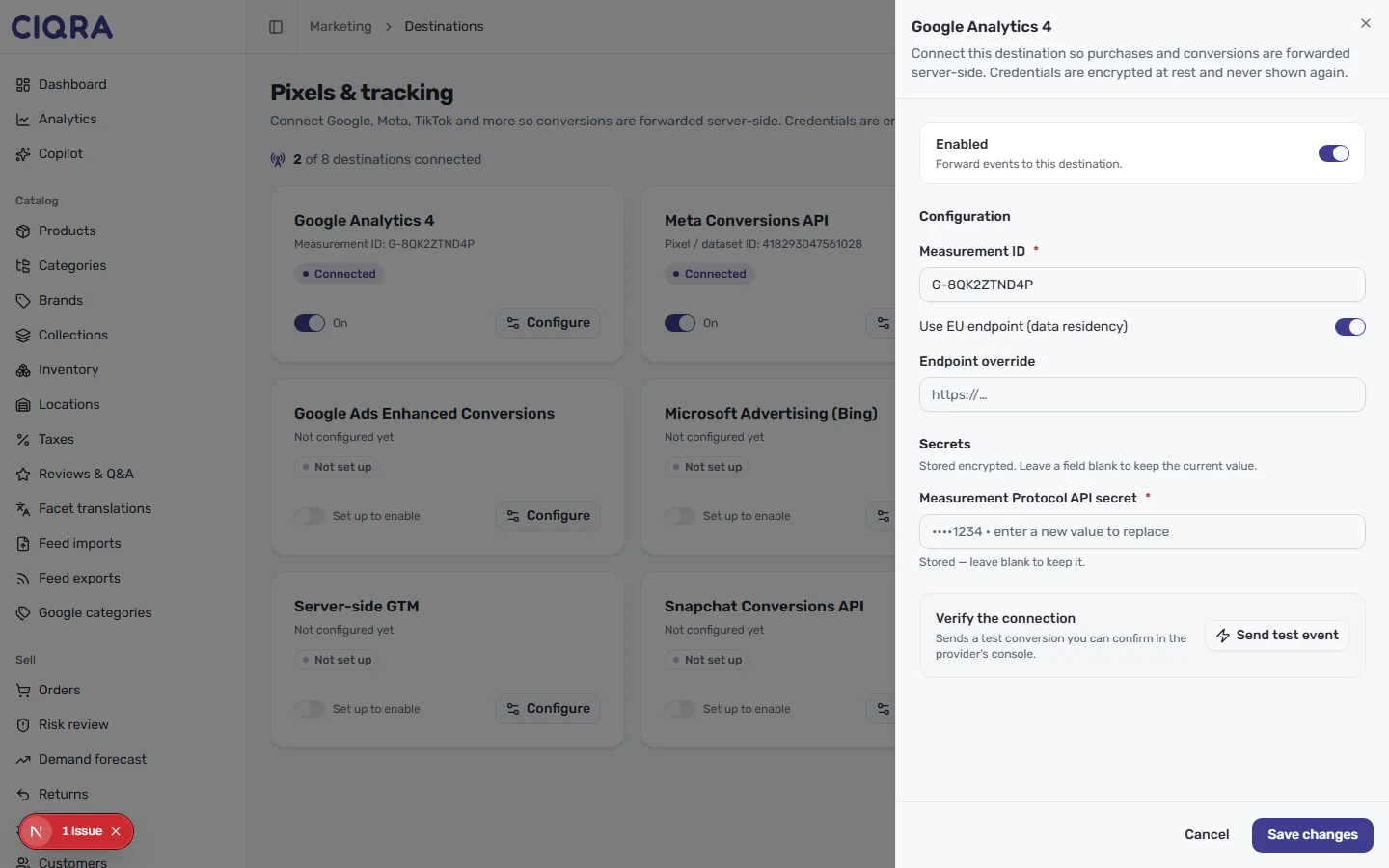
- 1EnabledThe toggle at the top controls whether CIQRA forwards events to this destination. Turn it on once the rest is filled in.
- 2ConfigurationThe identifiers the platform matches on — here the Measurement ID. Required fields are marked with an asterisk.
- 3SecretsPaste the API key here. Values are stored encrypted and never shown back — leave blank to keep the saved one.
- 4Verify the connectionSend test event fires a server-side test conversion you can confirm in the provider's own console.
- 5Save changesStores the destination and updates its card on the grid — with Enabled on, real conversions start forwarding.
Read the destinations grid
Section titled “Read the destinations grid”The grid shows one card per supported destination, with a summary line at the top — for example, 2 of 8 destinations connected. Each card tells you where that destination stands at a glance:
- The destination name, such as Google Analytics 4 or Meta Conversions API.
- A reference line once it’s set up — the measurement, pixel, or dataset ID it’s wired to.
- A status badge: Connected for a live destination, Not set up for one you haven’t touched yet.
- An on/off toggle to switch forwarding for that destination, and a Configure button to open its settings.
The subtitle up top makes the security promise explicit: conversions are forwarded server-side, and credentials are encrypted at rest.
Configure a destination
Section titled “Configure a destination”The editor is specific to that destination — CIQRA shows exactly the fields that platform needs — but the shape is always the same. Working down the panel:
- Enabled — the toggle at the top controls whether CIQRA forwards events to this destination. Turn it on once the rest is filled in.
- Configuration — the identifiers the platform uses to match your conversions. For Google Analytics 4 that’s the Measurement ID; other destinations ask for their own equivalent, like a pixel or dataset ID. Required fields are marked with an asterisk. Some destinations add their own options here — Google Analytics 4, for instance, offers a Use EU endpoint (data residency) toggle and an optional Endpoint override.
- Secrets — where you paste the API key or secret the platform issues. This section notes that values are stored encrypted, and once saved they’re never shown back to you — the field shows only a masked hint. Leave a secret field blank to keep the value you already saved.
Send a test event
Section titled “Send a test event”Before you rely on a destination, use the Verify the connection panel and select Send test event. CIQRA sends a test conversion server-side that you can then confirm in the provider’s own console — proof the credentials are right and events are landing where they should.
Save your changes
Section titled “Save your changes”When the form is complete and your test has landed, select Save changes. The card on the grid updates to reflect the new status, and — with Enabled on — CIQRA starts forwarding real conversions to that destination.