

A customer profile
Open any customer from the Customers list to see their full profile — a single page that pulls together who they are, what they’ve bought, and how to reach them.
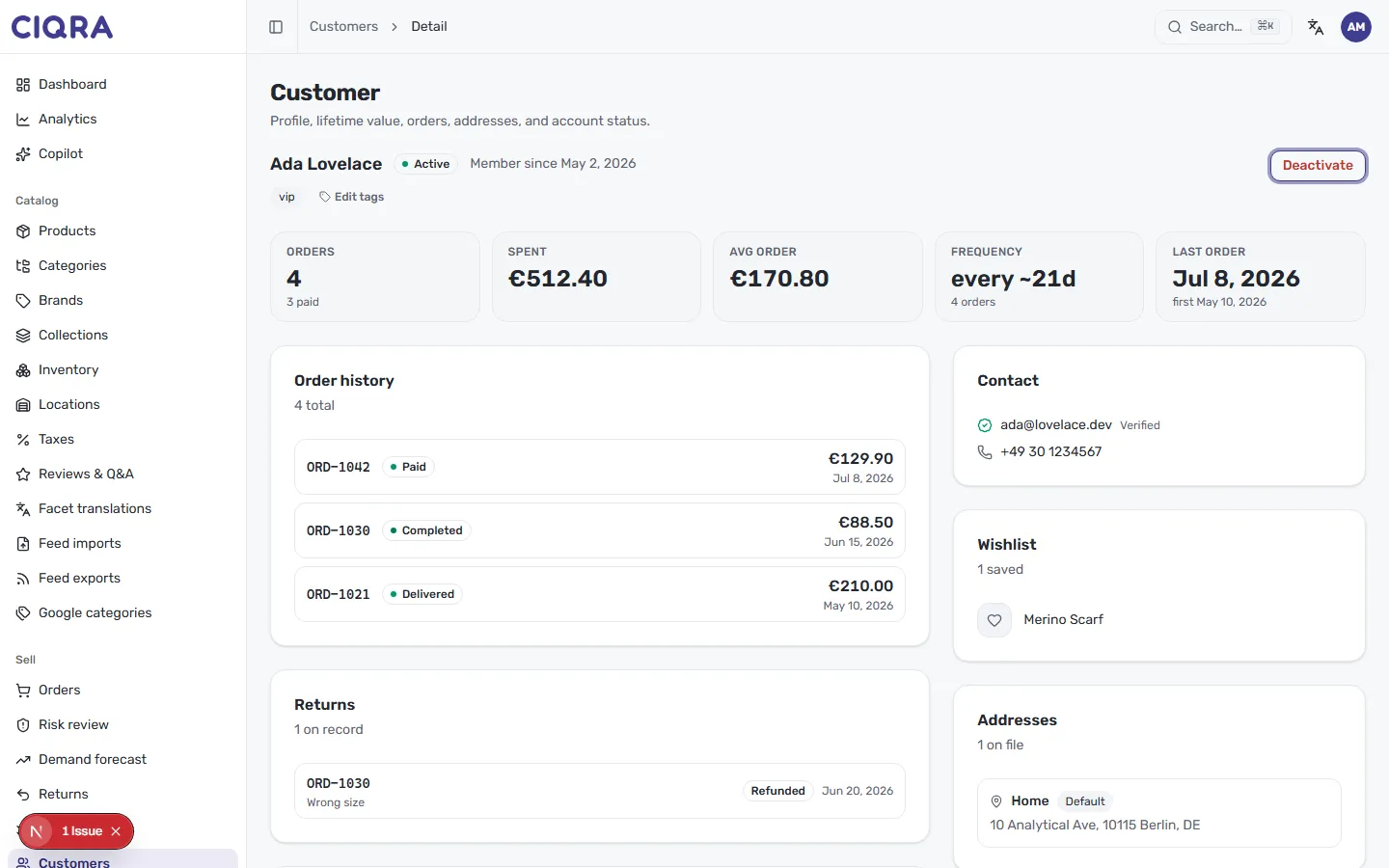
- 1Customer headerName, account status (Active here), and when they became a customer — Member since a date.
- 2Tags & Edit tagsLabels like vip to group customers however suits your store. Select Edit tags to change them.
- 3Summary tilesOrders, Spent, Avg order, Frequency and Last order — a quick read on value and activity.
- 4Order historyTheir orders with number, status, total and date, so you can see their buying pattern.
- 5ContactEmail — marked Verified once confirmed — and phone number.
- 6AddressesThe addresses on file, with the Default one marked for shipping.
The header
Section titled “The header”At the top you’ll find the customer’s name, their account status (for example,
Active), and when they became a customer — Member since a date. Just below sit
their tags, with an Edit tags control for grouping them however makes sense for
your store (the example customer is tagged vip).
On the right, Deactivate lets you change the account’s status when you need to.
Summary at a glance
Section titled “Summary at a glance”A row of tiles summarises the customer’s relationship with your store:
- Orders — how many they’ve placed, and how many are paid.
- Spent — their total lifetime spend.
- Avg order — their average order value.
- Frequency — roughly how often they order.
- Last order — the date of their most recent order, with when they first bought.
Together these give you a quick read on how valuable and how active the customer is.
Order and return history
Section titled “Order and return history”Order history lists the customer’s orders with their number, status (such as Paid, Completed or Delivered), total and date, so you can see their buying pattern without leaving the page. Alongside it, Returns shows anything they’ve sent back, with the reason and outcome (for example, Refunded).
Contact, wishlist and addresses
Section titled “Contact, wishlist and addresses”The right-hand column keeps the practical details together:
- Contact — the customer’s email (marked Verified once confirmed) and phone number.
- Wishlist — products they’ve saved for later.
- Addresses — the addresses on file, with the Default one marked for shipping.