

Process an order
Opening an order gives you the whole story in one place — what was bought, what the customer paid, what’s happened so far, and the actions you can take next. The subtitle sums it up: line items, totals, customer, and fulfillment.
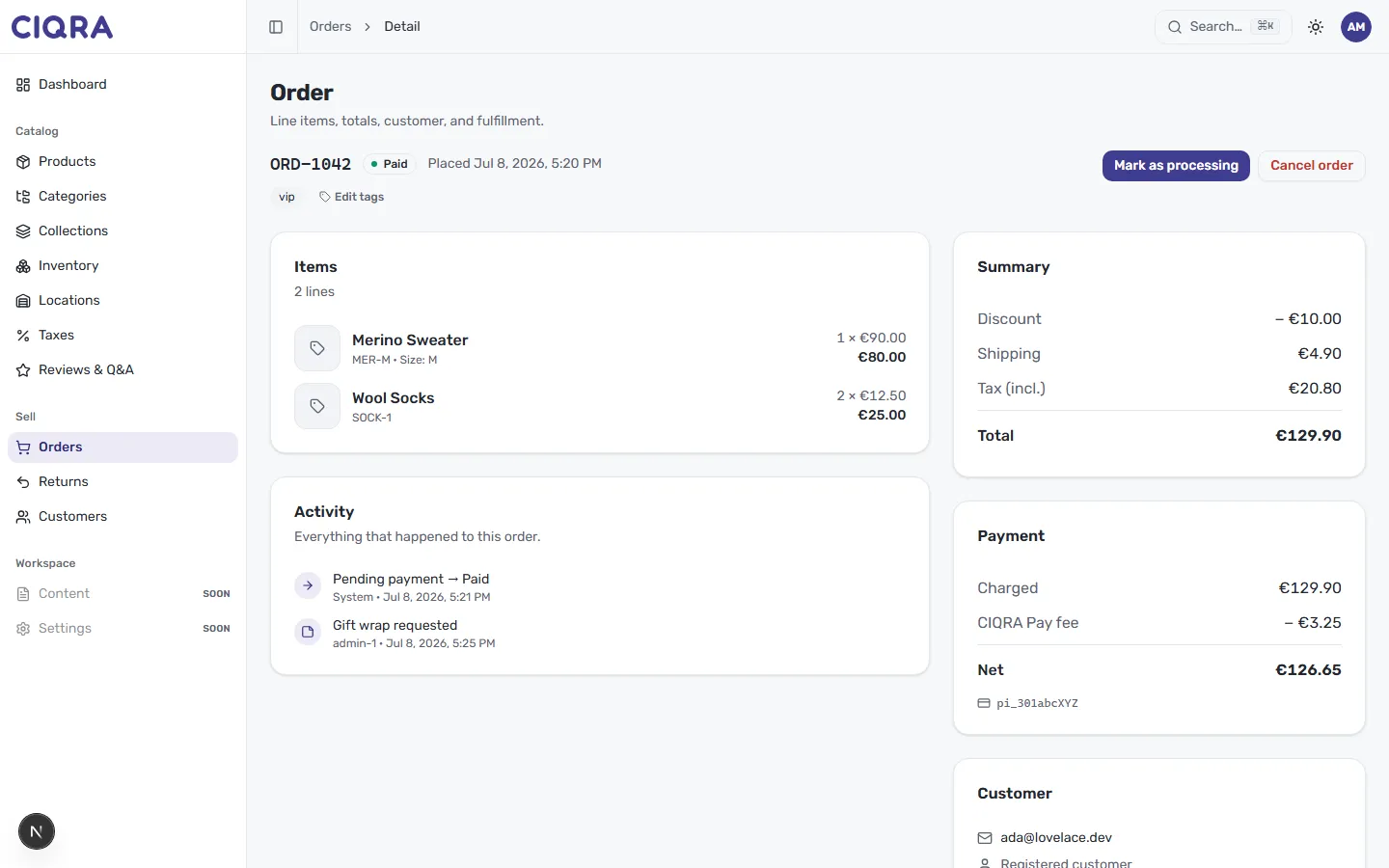
- 1Order statusWhere the order is right now — Paid in this example — next to its number and when it was placed.
- 2Order actionsMark as processing moves it forward; Cancel order stops one you shouldn't fulfil. The buttons match the current stage.
- 3Tags & Edit tagsShort labels like vip or gift to group and find orders. Select Edit tags to add or remove them.
- 4ItemsEvery line on the order, with variant, quantity and price.
- 5Summary & PaymentDiscount, shipping, tax and the Total up top; below, what was Charged, the CIQRA Pay fee, and your Net.
- 6Activity timelineEverything that happened to this order — system events and staff notes, in order.
The order header
Section titled “The order header”At the top you’ll see the order number (ORD-1042), its current status (here,
Paid) and when it was placed. On the right are the actions available for this
order:
- Mark as processing moves the order forward in its lifecycle.
- Cancel order stops an order you shouldn’t fulfil.
Tag the order
Section titled “Tag the order”Just under the header are the order’s tags — here, a vip tag — with an Edit
tags control. Tags are short labels you add to group and find orders (for example,
vip, gift, or fraud-check). Select Edit tags to add or remove them.
Line items and totals
Section titled “Line items and totals”The Items card lists every line on the order with its variant details, quantity and price — for example, a Merino Sweater (MER-M, Size M) and Wool Socks (SOCK-1).
On the right, the Summary card breaks down the money: Discount, Shipping, Tax and the Total — all in the order’s currency.
Payment
Section titled “Payment”The Payment card shows what was Charged, the CIQRA Pay fee deducted, and the resulting Net you receive, along with the payment reference. For how payouts and fees work, see Payments & CIQRA Pay.
The activity timeline
Section titled “The activity timeline”The Activity card is the order’s history — everything that happened to this order. It records both automatic events and things your team adds. In this example it shows a system event (Pending payment → Paid) and a staff note (Gift wrap requested, added by a team member). Use it to keep everyone on the same page about an order.
Fulfillment, tracking and refunds
Section titled “Fulfillment, tracking and refunds”Getting orders out the door — recording shipments and tracking — and issuing refunds are part of working an order too. These actions appear on the order as it moves through its lifecycle and once a payment is captured.