

Manage your products list
The Products list is your catalog’s control room. From here you can “manage the products in your catalog” — search, filter, sort, act on many products at once, and export.
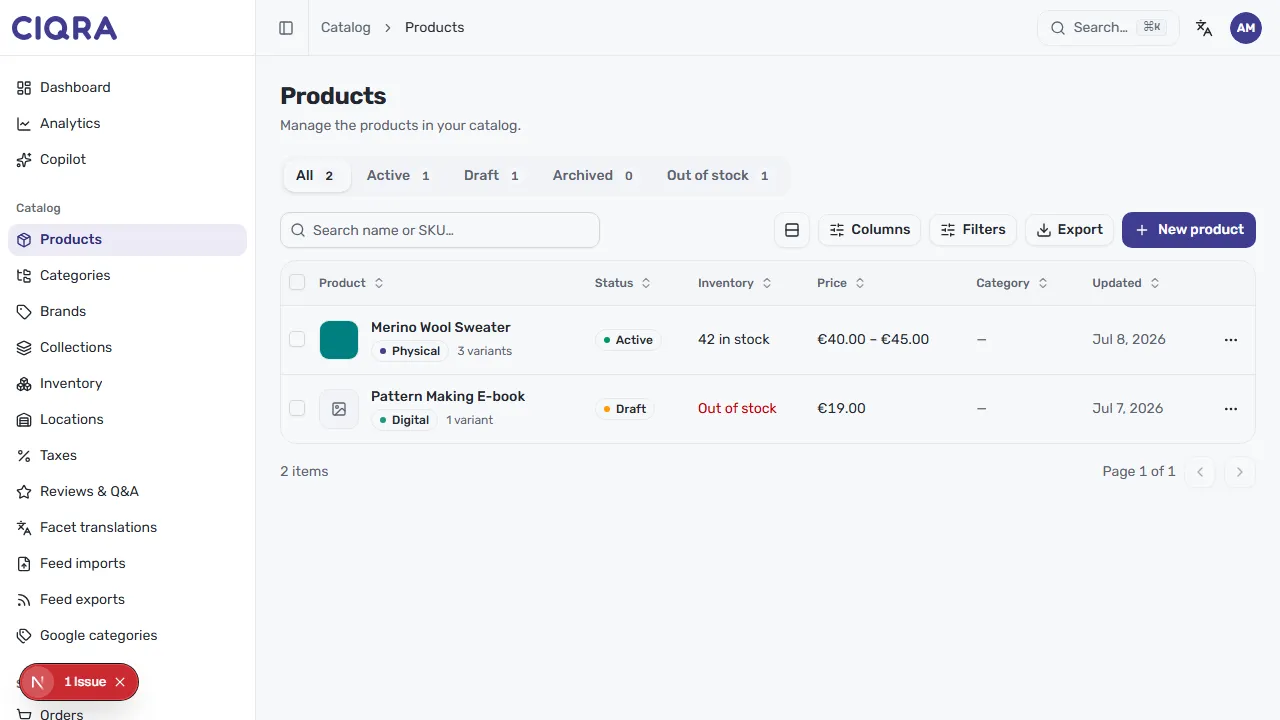
- 1Status tabsSplit the catalog by status with live counts: All, Active, Draft, Archived and Out of stock.
- 2SearchLook up a product by name or SKU for a quick jump to it.
- 3Columns, Filters & ExportChoose which columns show, combine filter conditions, or download the list.
- 4New productStart a new product to add to your catalog.
- 5A product rowEach row shows the thumbnail, name, type and variant count, plus Status, Inventory, Price, Category and Updated.
Read the list at a glance
Section titled “Read the list at a glance”Each row summarizes a product: its thumbnail and name, whether it’s Physical or Digital, and how many variants it has. The columns then show:
- Status — Active, Draft, or Archived, each with a colored dot.
- Inventory — for example 84 in stock, 3 in stock, or a red Out of stock.
- Price — a single price or a range across variants (for example €40.00 – €45.00).
- Category and Updated date.
Sort by any column using the arrows in its header. The footer shows the item count and pagination.
Filter with the status tabs
Section titled “Filter with the status tabs”Across the top, tabs split your catalog by status and show a live count: All, Active, Draft, Archived, and Out of stock. Select a tab to focus the list — handy for reviewing drafts before publishing, or checking what’s archived.
Search and filter
Section titled “Search and filter”Use the Search name or SKU… box for a quick lookup. For finer control, open Filters to combine conditions in one panel:
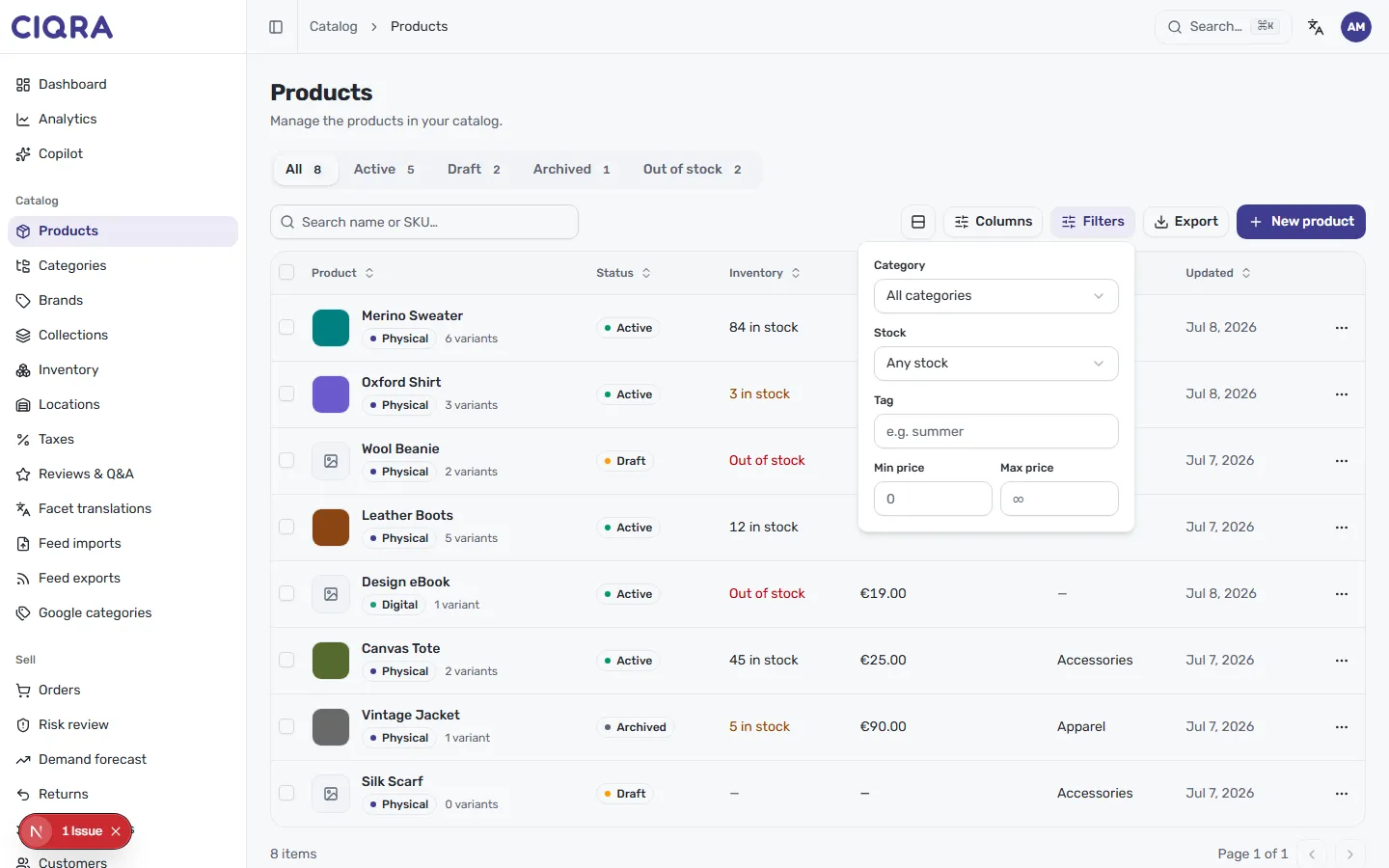
- Category — limit to one category, or All categories.
- Stock — for example Any stock, to focus on stock status.
- Tag — match a tag such as
summer. - Min price and Max price — set a price band.
The Columns button lets you choose which columns show, and Export downloads your list.
Take bulk actions
Section titled “Take bulk actions”Tick the checkbox on any row to start a selection — or use the checkbox in the column header to select every product on the page. An action bar appears showing how many are selected, with one-tap actions:
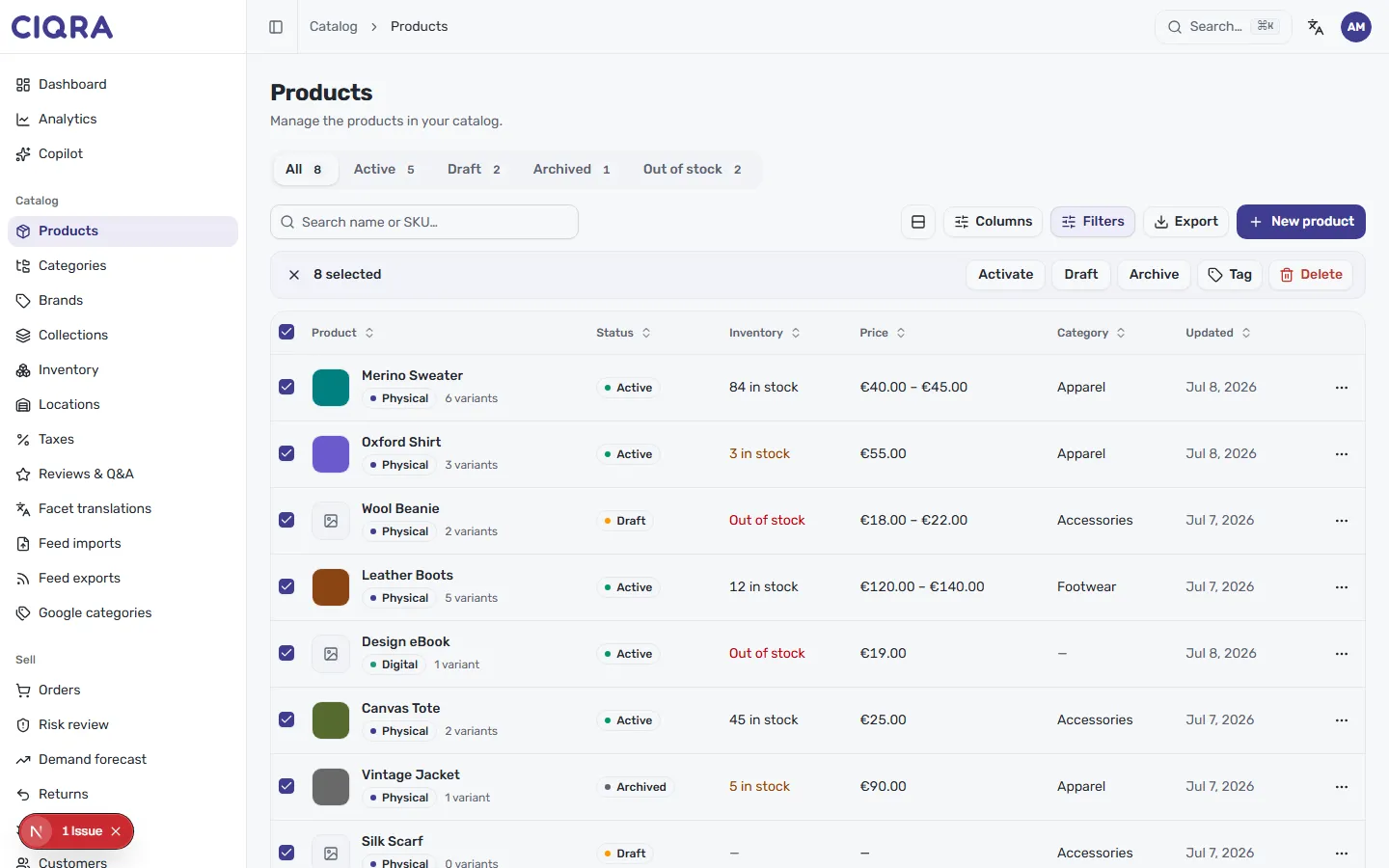
- Activate — publish the selected products.
- Draft — move them back to draft.
- Archive — archive them out of the active catalog.
- Tag — apply a tag across the selection.
- Delete — remove them.
Clear the selection with the × on the left of the bar.
Find what’s out of stock
Section titled “Find what’s out of stock”The Out of stock tab filters the list down to products that need restocking, with a running count in the tab itself.
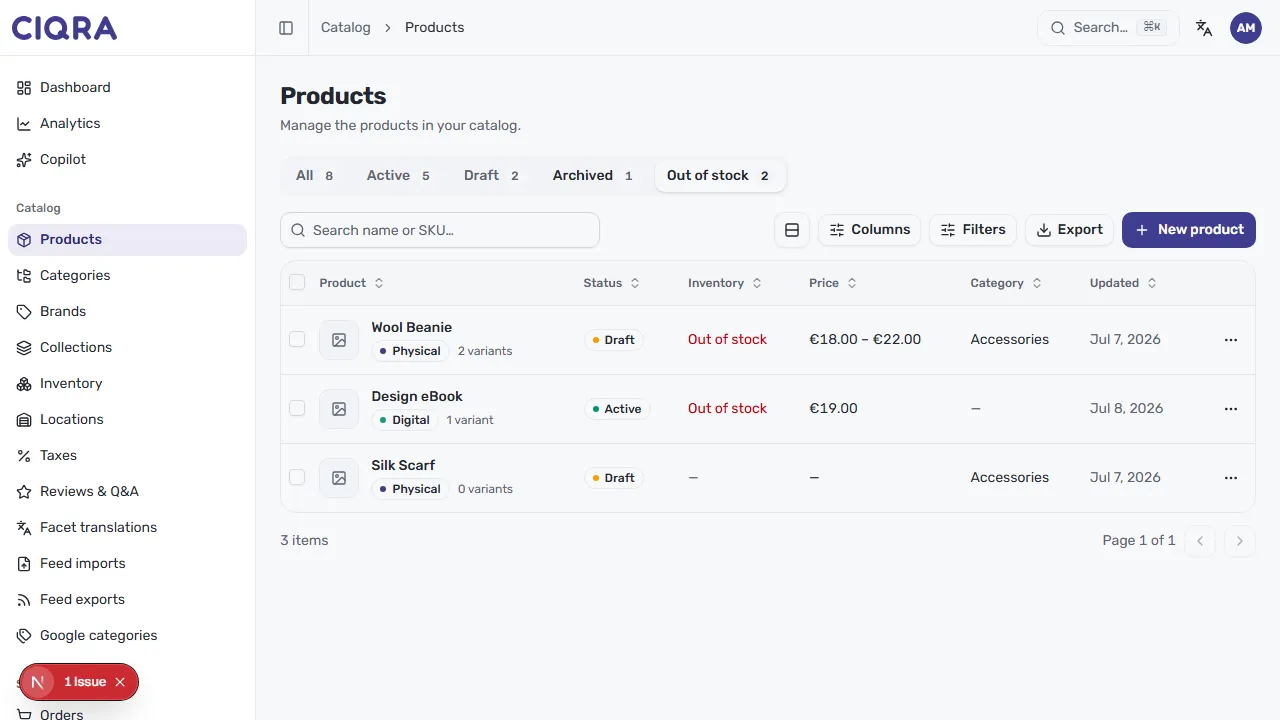
Use it as a restocking worklist, then jump into inventory to adjust stock, or open a product to add more.