

Reviews and questions
Customer reviews and questions build trust — but you decide what shows. The Reviews & Q&A area lets you “moderate customer reviews and product questions before they appear on your storefront.” Open it from the Catalog group in the sidebar.
Two tabs — Reviews and Questions — split the work, and a status control (such as Pending) filters each list so you can focus on what needs a decision.
Moderate reviews
Section titled “Moderate reviews”On the Reviews tab, each review card shows its star rating, the customer’s name, a Verified purchase badge where it applies, the review title and body, which product it’s on, and a status badge such as Pending.
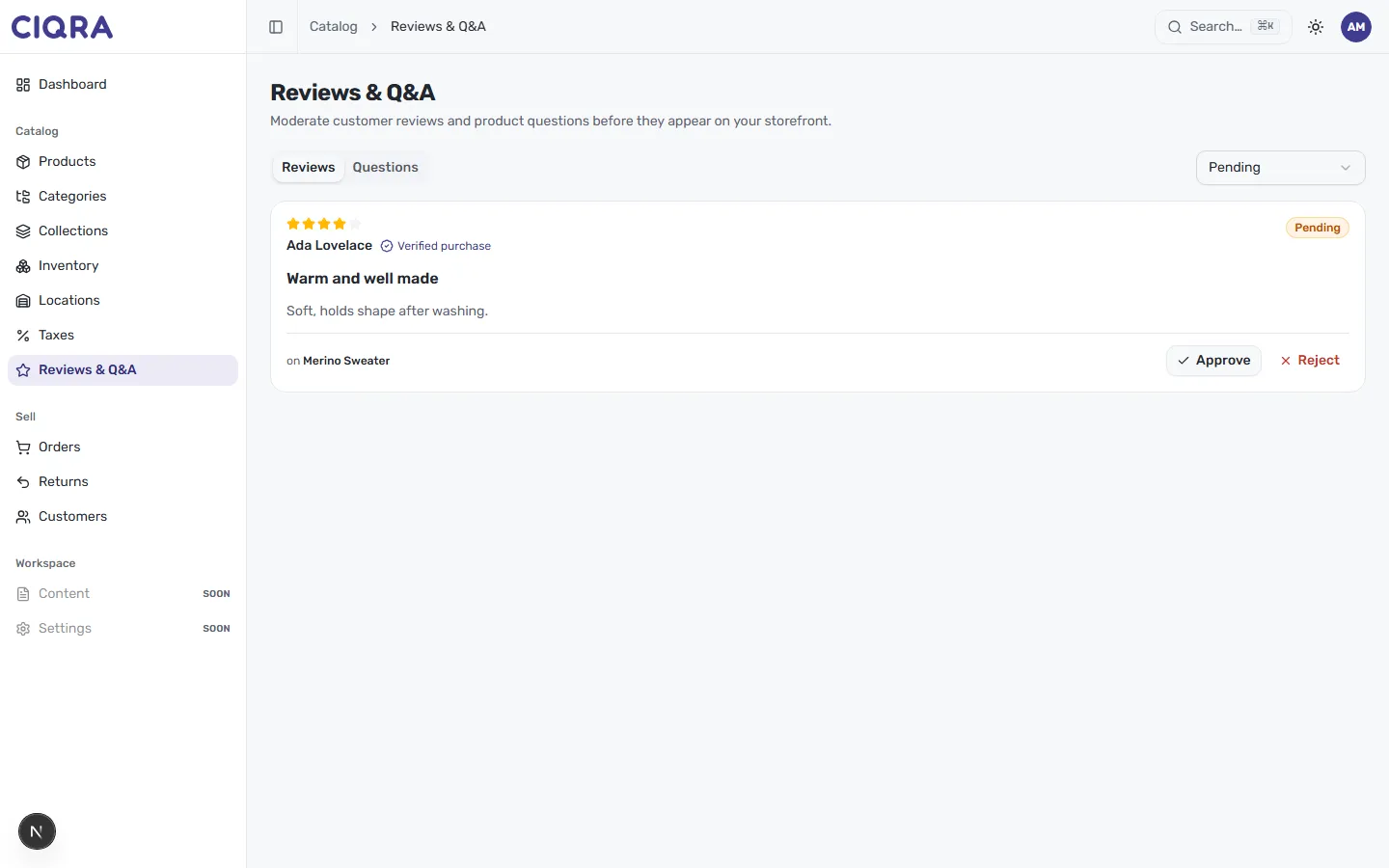
Decide on each one with the two actions on the card:
- Approve — publish the review to the product’s storefront page.
- Reject — keep it off the storefront.
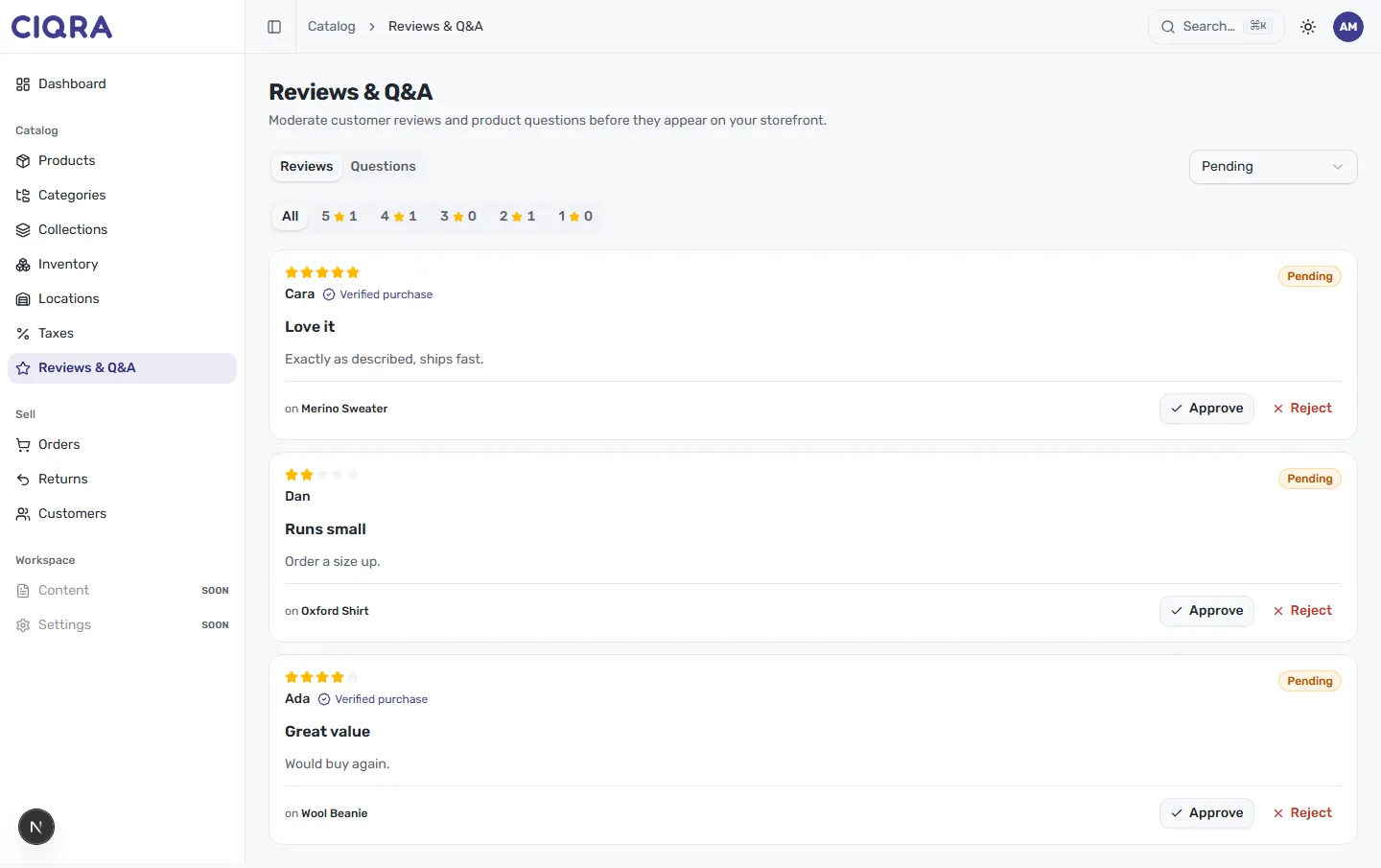
When several are waiting, work down the list. A row of star filters — All, then 5, 4, 3, 2, and 1 star, each with a count — lets you jump to a rating band, handy for reviewing critical feedback first.
Moderate and answer questions
Section titled “Moderate and answer questions”The Questions tab lists customer questions — each showing the question, who asked it and on which product, and a status badge. As with reviews, you Approve or Reject the question itself.
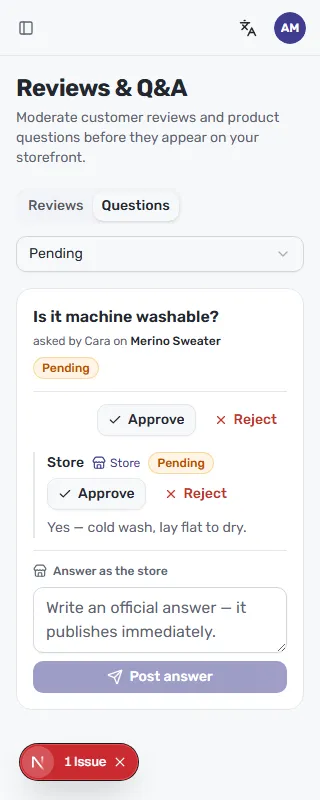
Answers are moderated too: a customer’s answer carries its own Approve / Reject controls, and an official reply is marked with a Store badge.
Answer as the store
Section titled “Answer as the store”Each question has an Answer as the store box. Type your reply and select Post answer. As the field notes, an official store answer “publishes immediately” — it doesn’t wait for moderation.
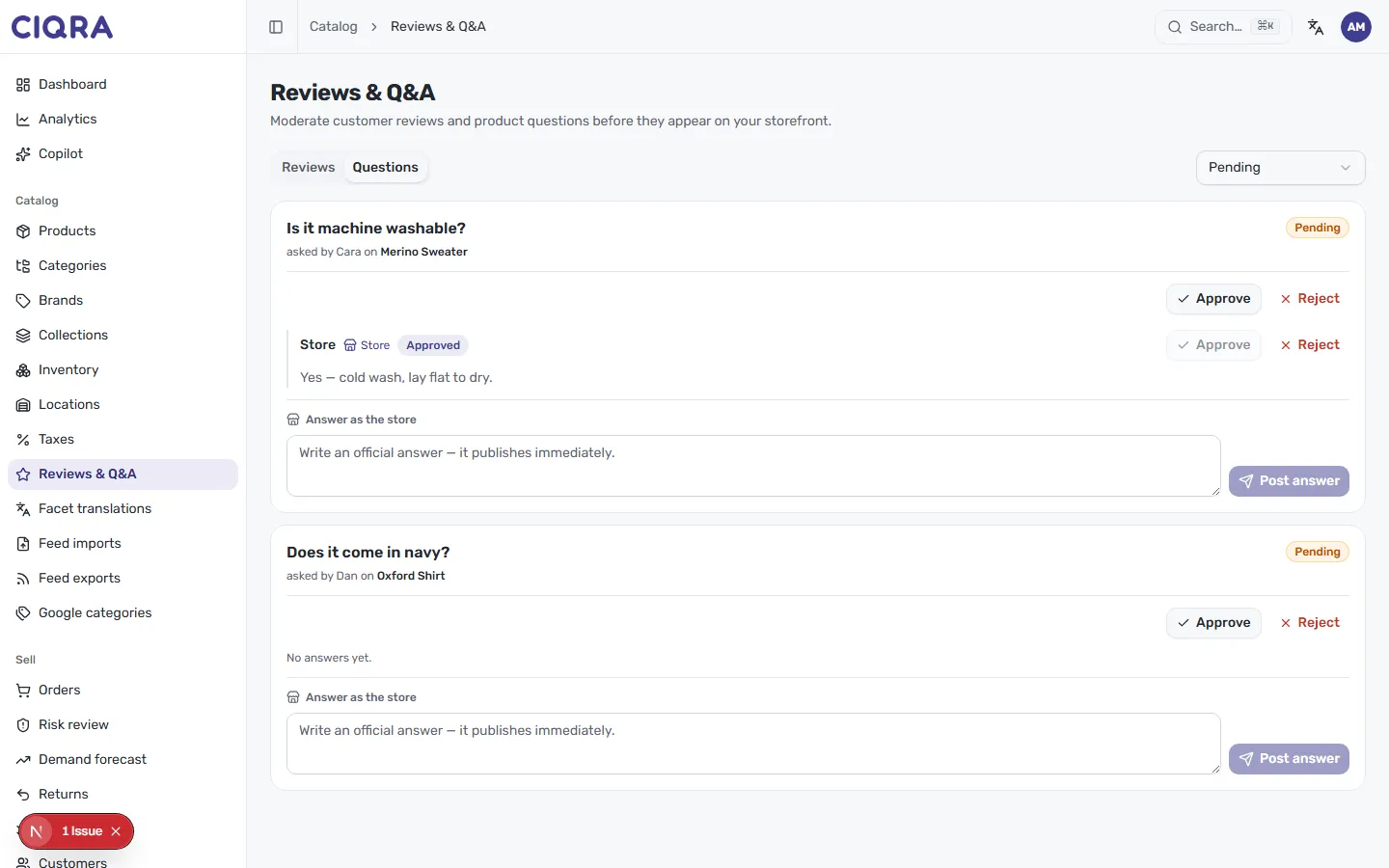
Where a question has no reply yet, it shows No answers yet — a clear prompt to step in with an authoritative answer.