

Filter and find products
A growing catalog is only useful if you can find things fast. The Products list gives you a quick search, a combinable filter panel, and status tabs that double as ready-made views.
Quick search
Section titled “Quick search”Use the Search name or SKU… box above the list for an instant lookup. It matches both the product name and its SKUs, so you can paste a SKU straight from an order or a label and land on the right product.
Combine filters
Section titled “Combine filters”For anything more precise than a name, open Filters. The panel stacks several conditions that all apply together:
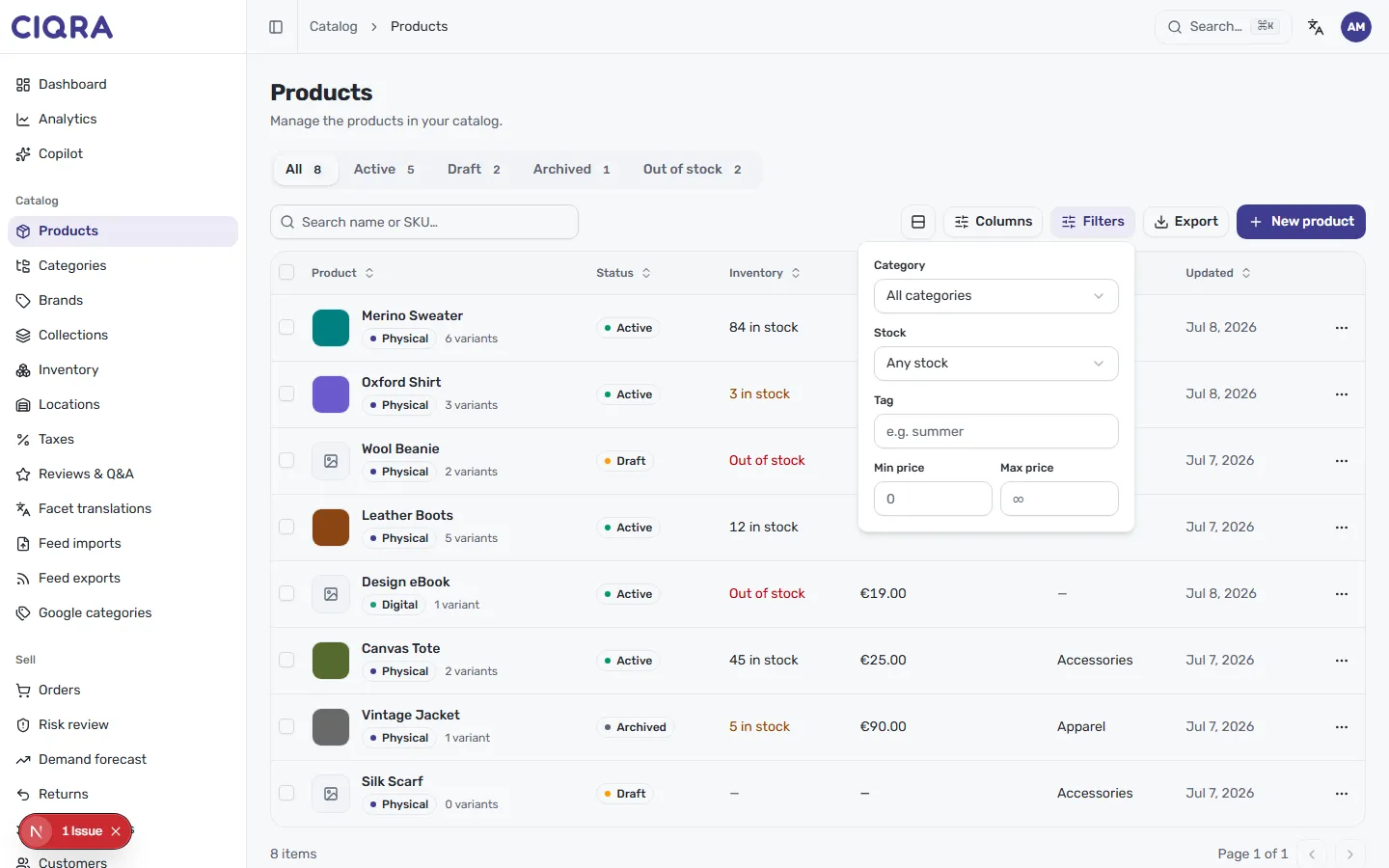
- Category — limit to one category, or leave it on All categories.
- Stock — focus by stock status (for example Any stock).
- Tag — match a tag such as
summer. Tags are the labels you add in a product’s Organization section. - Min price and Max price — set a price band to find, say, everything under €20 or your premium tier.
Because the conditions combine, you can answer real questions in one pass — “which
Apparel products under €50 are tagged sale?” — rather than scrolling.
Use the status tabs as views
Section titled “Use the status tabs as views”Across the top of the list, tabs split your catalog by status with a live count: All, Active, Draft, Archived, and Out of stock. Each is a one-tap view — for example, Draft to review what’s not live yet, or Archived to see what you’ve retired.
Find what’s out of stock
Section titled “Find what’s out of stock”The Out of stock tab filters the list to products with no available stock, with the count shown in the tab itself.
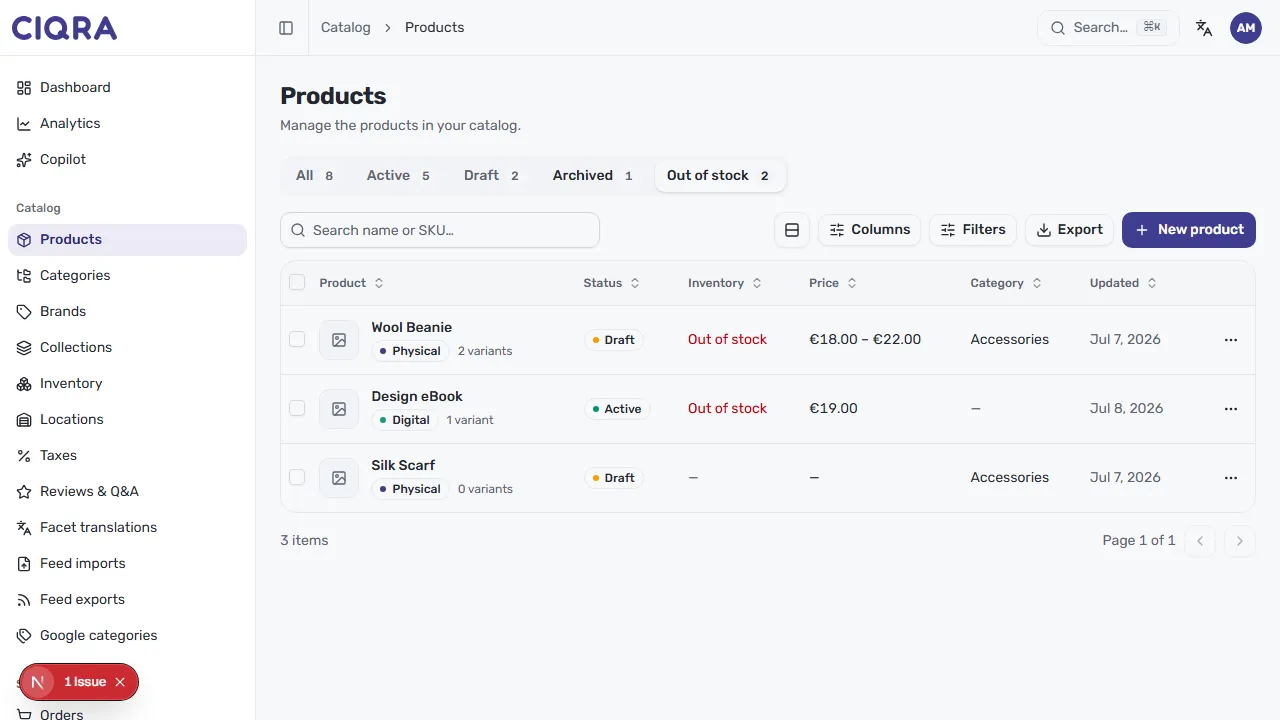
Treat it as a restocking worklist: work down the list, then open Inventory to adjust levels, or open a product to add stock to a variant.