

A tour of your dashboard
Your Dashboard is the first thing you see after signing in — your store at a glance, with everything else one click away. Here’s what each part does.
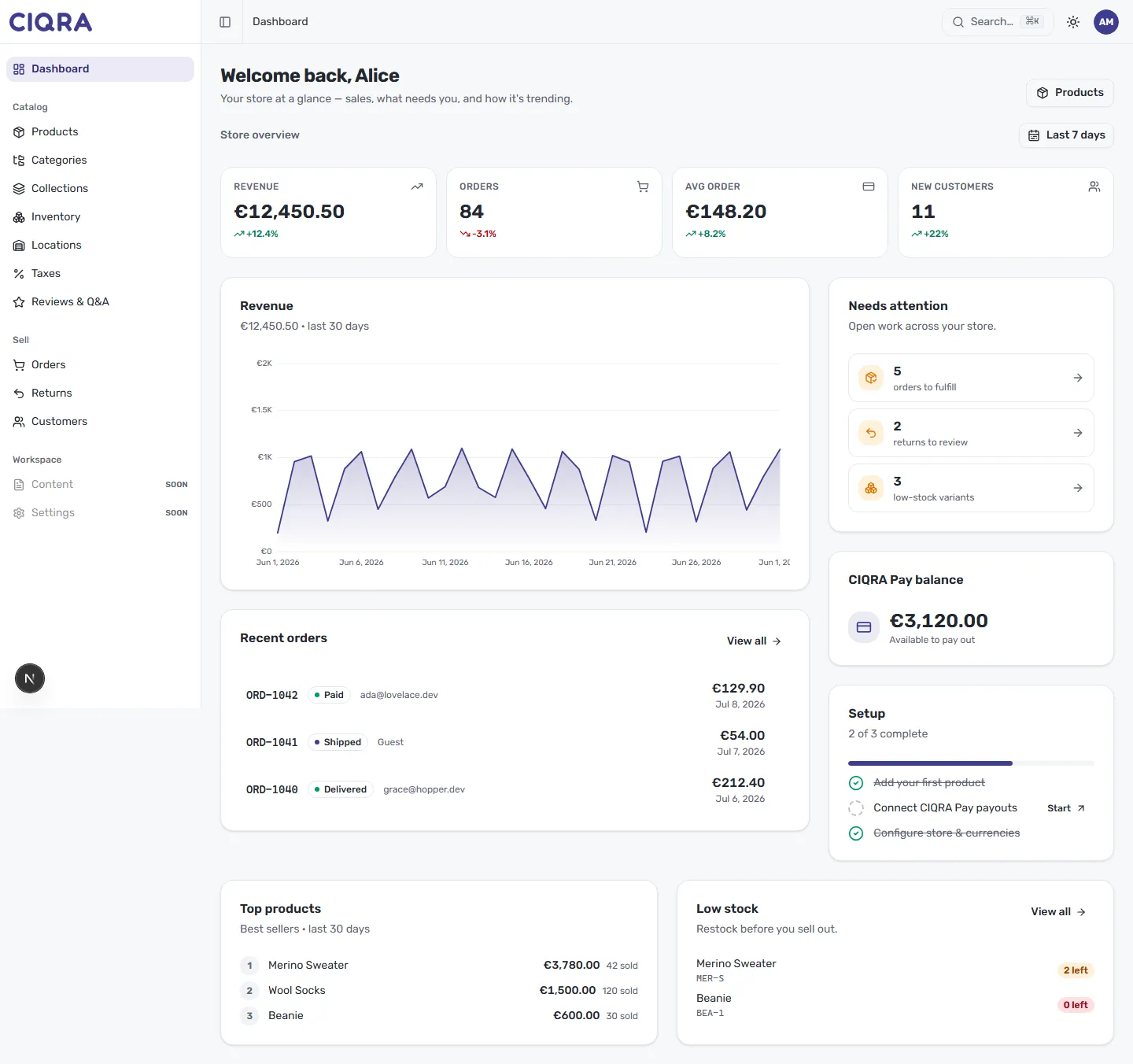
- 1NavigationYour tools, grouped by job: Catalog, Sell, and Workspace.
- 2Store overviewRevenue, orders, average order value and new customers for your date range.
- 3Revenue chartSales over time, so you can spot trends at a glance.
- 4Needs attentionOpen work — orders to fulfil, returns to review, low stock — each links straight there.
- 5Setup checklistFor new stores: the key steps to open for business.
The navigation
Section titled “The navigation”The left sidebar groups your tools by the job you’re doing:
- Catalog — Products, Categories, Collections, Inventory, Locations, Taxes and Reviews & Q&A. Build and organise what you sell → Products & Catalog.
- Sell — Orders, Returns and Customers: taking and fulfilling orders → Orders & Fulfillment.
- Workspace — your account and store settings.
Up top: quick search (⌘K / Ctrl K anywhere), the theme toggle, and your account menu.
Your store overview
Section titled “Your store overview”Four cards summarise the essentials for your selected date range — Revenue, Orders, Average order value and New customers — each showing the change versus the previous period. Use the date control (for example, Last 7 days) to change the window.
Below them, the Revenue chart plots sales over time. For the full picture, open Analytics & Reports.
What needs your attention
Section titled “What needs your attention”The dashboard surfaces open work so nothing slips:
- Needs attention — orders to fulfil, returns to review, low-stock variants. Each links straight to the right screen.
- Recent orders — your latest orders and their status; View all opens Orders.
- Top products and Low stock — what’s selling, and what to restock.
- CIQRA Pay balance — funds available to pay out. More in Payments — CIQRA Pay.