

Track inventory
Inventory shows “stock on hand per product and location” so you always know what you can sell. Open it from the Catalog group in the sidebar.
Understand the numbers
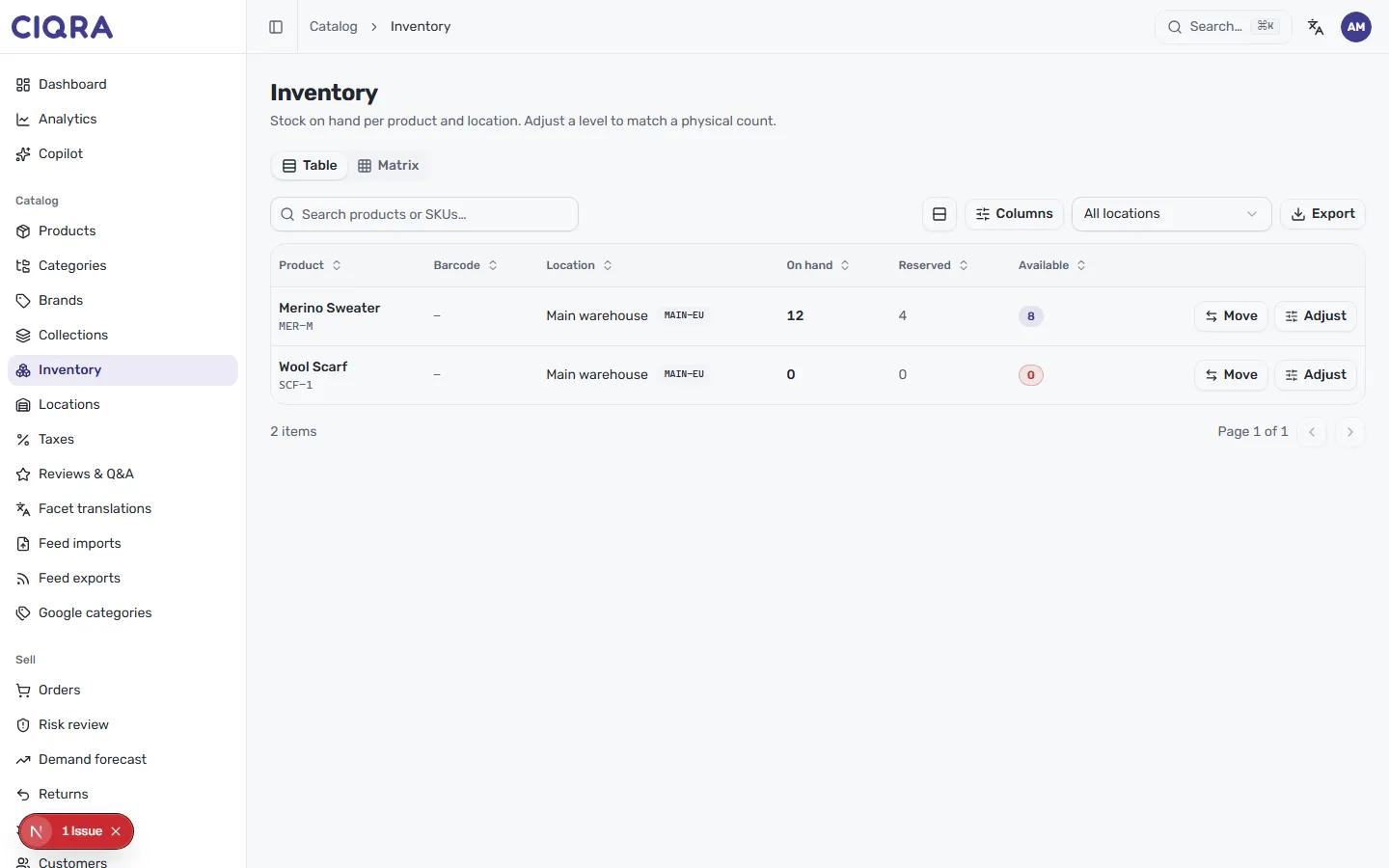
Section titled “Understand the numbers”Each row is a variant at a location, identified by its SKU and a location
(with its short code, such as MAIN-EU). Three counts tell the story:
- On hand — the physical units at that location.
- Reserved — units committed to orders that aren’t fulfilled yet.
- Available — what’s actually sellable (on hand minus reserved). A red 0 flags an item with nothing left to sell.
Search by product or SKU, choose which columns appear with Columns, and use the All locations control to focus on a single location.
Adjust a level
Section titled “Adjust a level”When your physical count doesn’t match the system — after a stocktake, breakage, or receiving new stock — select Adjust on the row. The Adjust stock dialog opens for that exact variant and location (for example “Merino Sweater • MER-M at Main warehouse”):
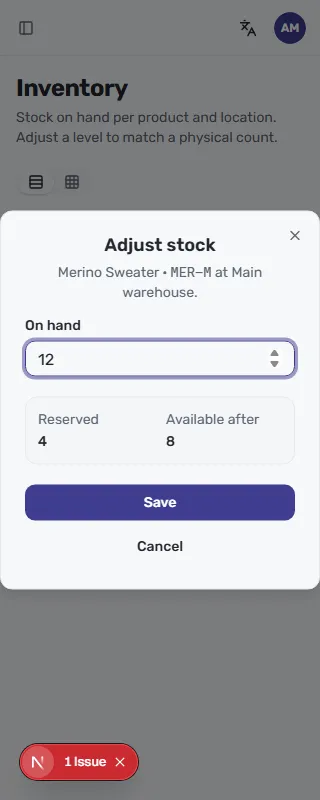
Set the On hand field to the real count. The dialog shows Reserved and the resulting Available after so you can see the effect before committing, then select Save (or Cancel to back out).
Table and matrix views
Section titled “Table and matrix views”A Table / Matrix toggle at the top switches how stock is laid out.
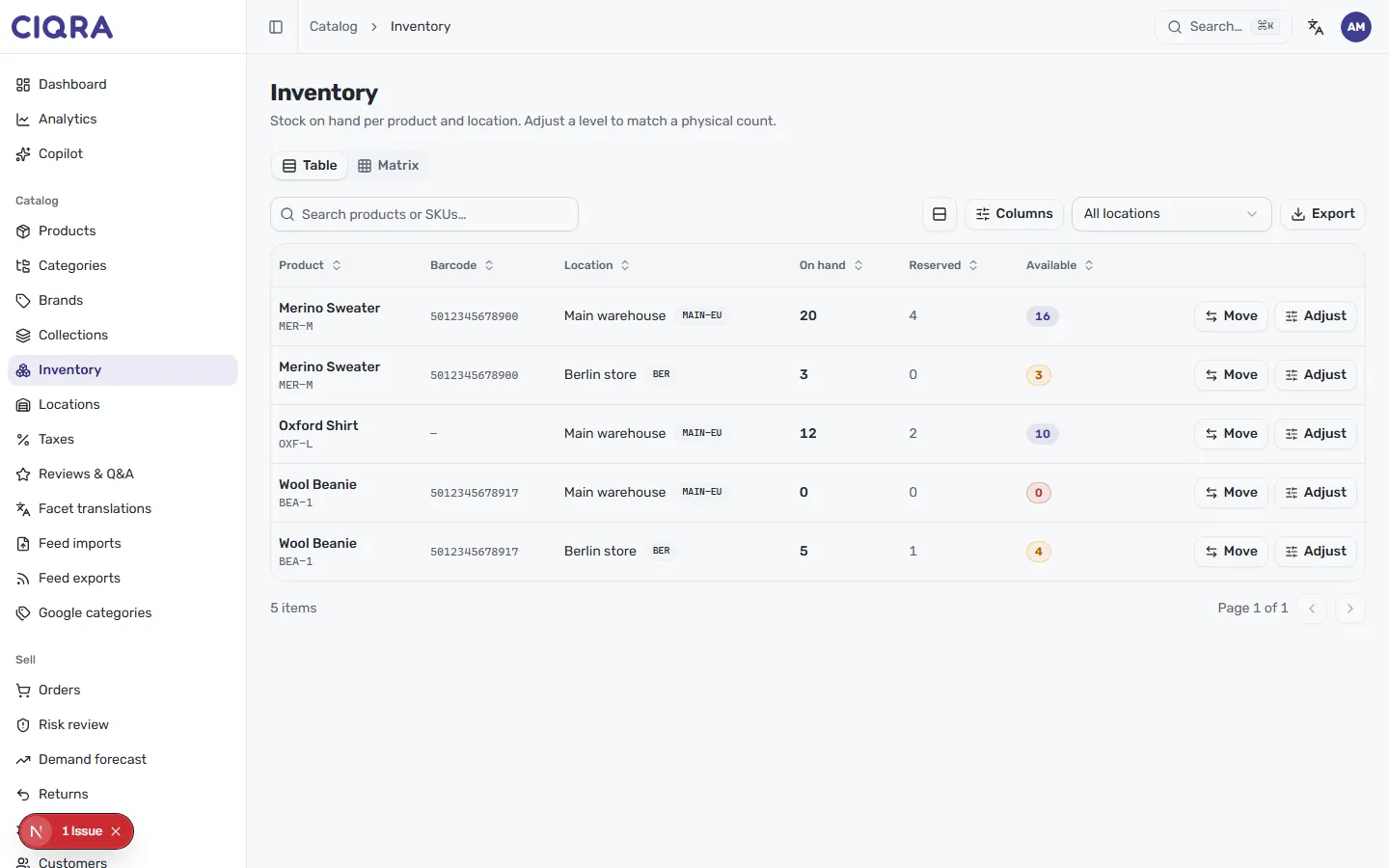
The Table view lists one row per variant per location, adding a Barcode column alongside on-hand, reserved, and available — best when you want every stock line with its Adjust button close by.
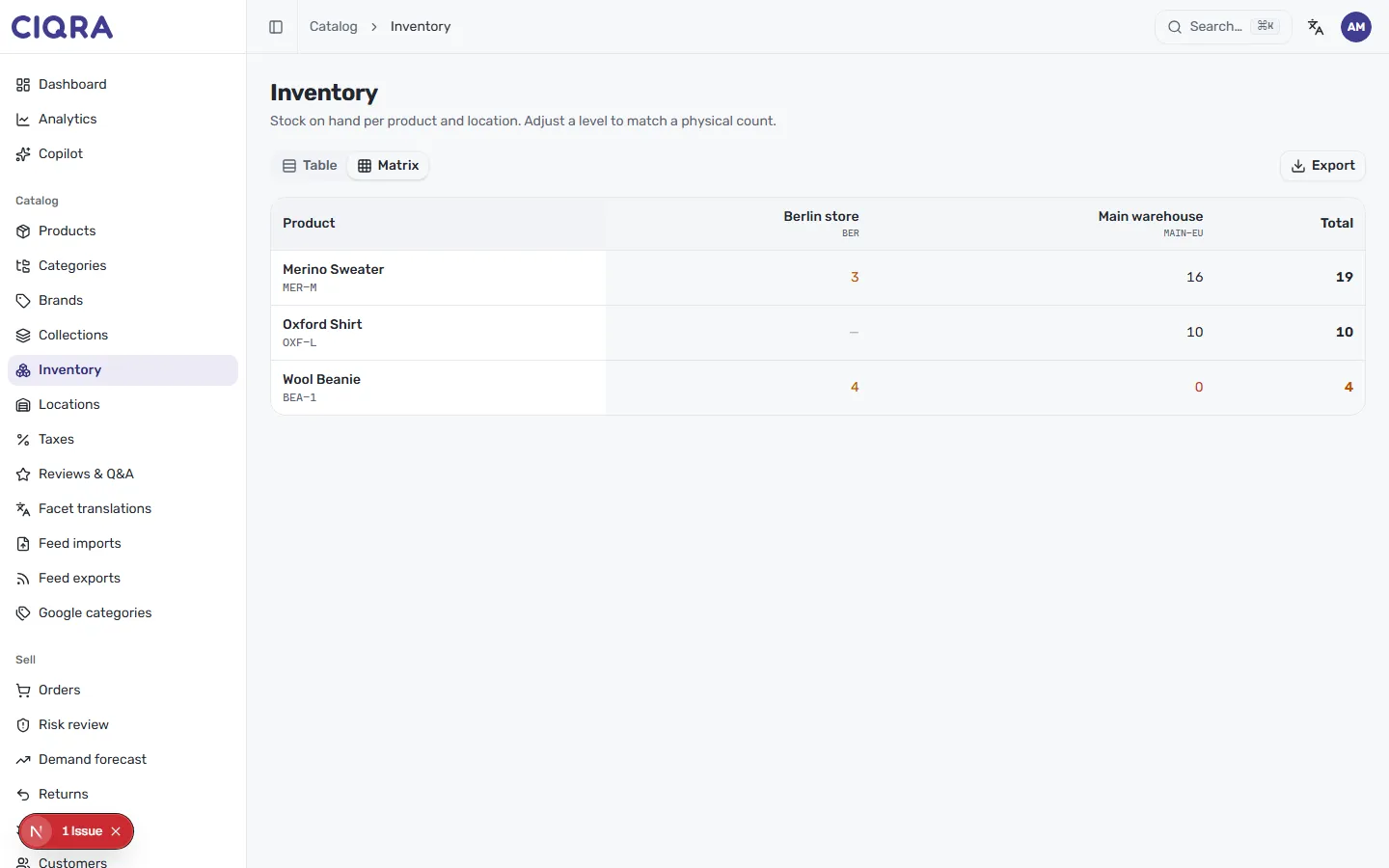
The Matrix view pivots the same data into a grid: products down the side,
your locations across the top (each with its code, such as BER and MAIN-EU),
and a Total column. It’s the fastest way to compare how one product is spread
across warehouses.
Use Export to download the current view for a spreadsheet or a stocktake sheet.